

Opening the Setbacks panel
Open the Setbacks panel from either entry point:- The setbacks button in the top toolbar
- Clicking anywhere in the project information side panel
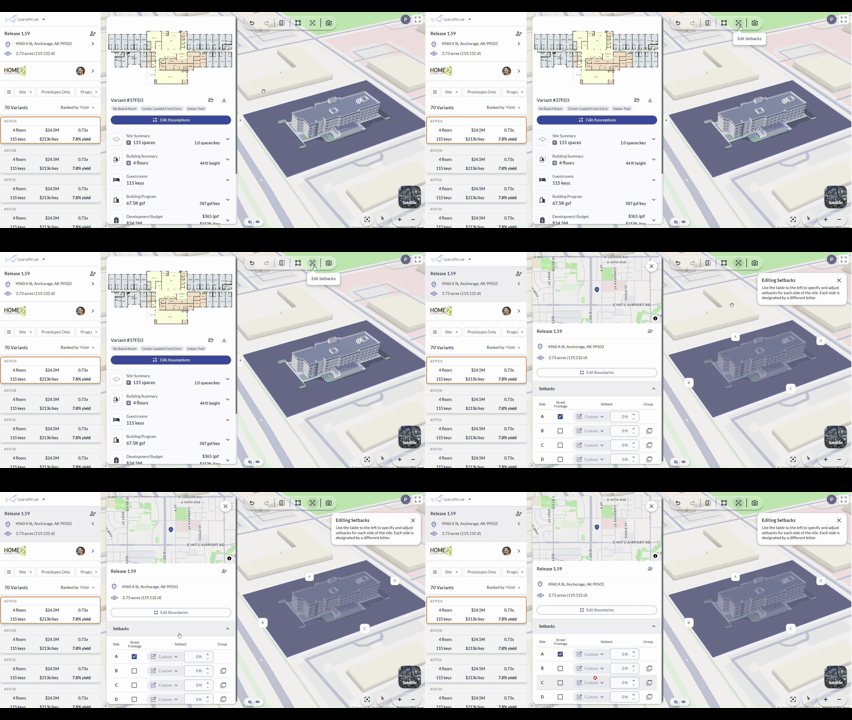
Opening the Setbacks panel from the top toolbar
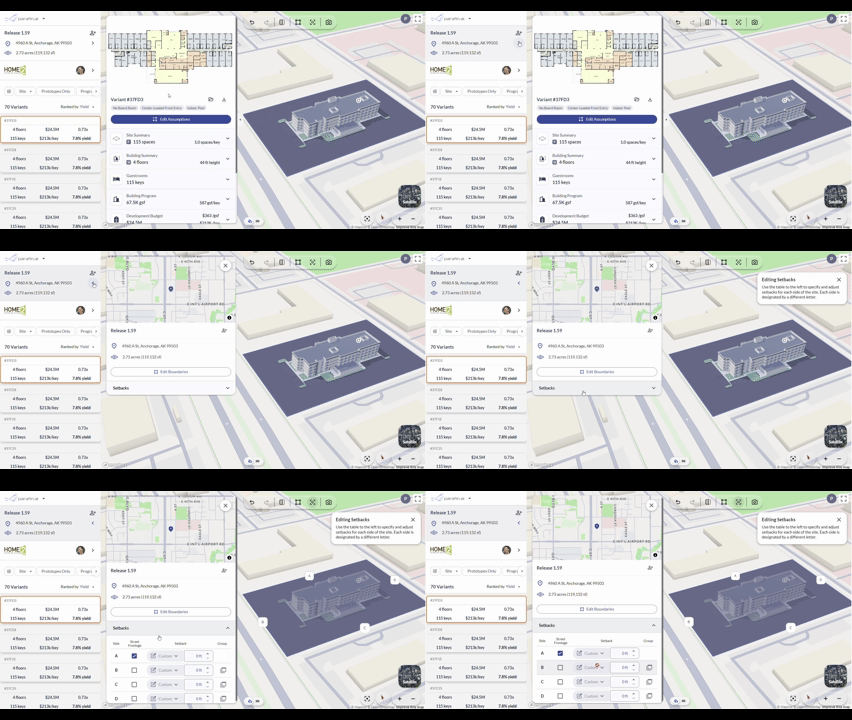
Opening the Setbacks panel from the project information side panel
Adjusting setback distances
Adjust individual setback distances inside the panel. Changes apply to the site footprint in the viewer in real time.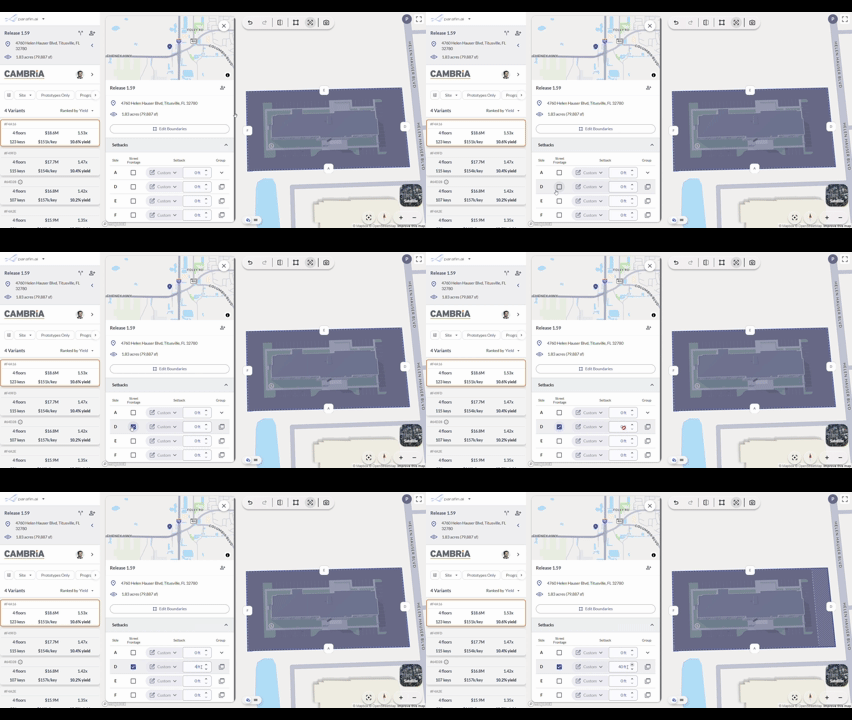
Adjusting individual setback distances
Simplifying complex parcels
County parcel geometry sometimes produces more sides than you need. Group adjacent sides together to reduce the number of distinct setback labels.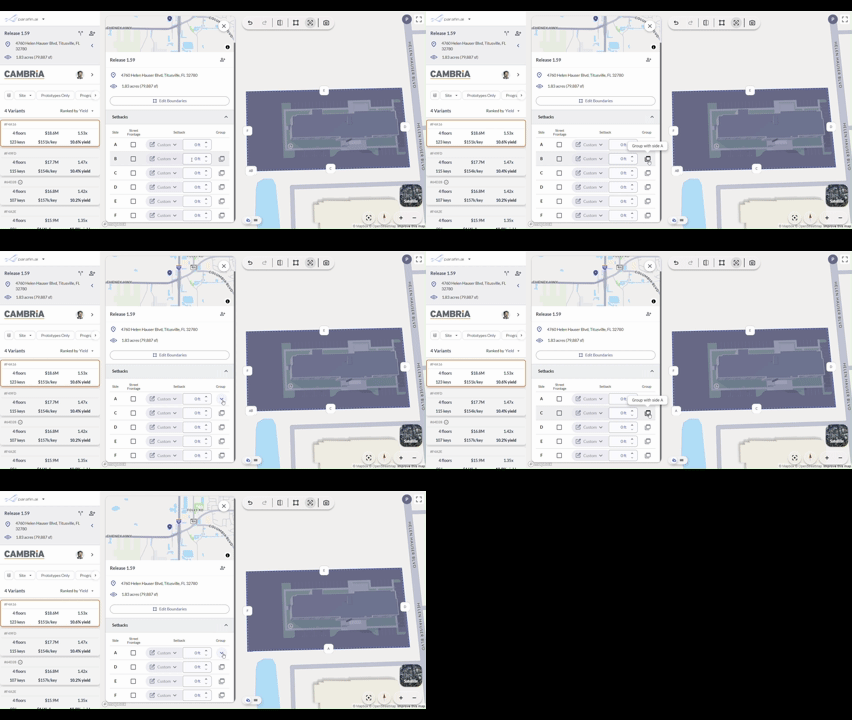
Grouping adjacent parcel sides to simplify setback labeling
Using zoning-suggested setback values
When zoning data is available for your site, Parafin displays suggested zoning values for front, side, and rear setbacks. Apply them as-is or adjust using the slider or text field. The site footprint updates in real time.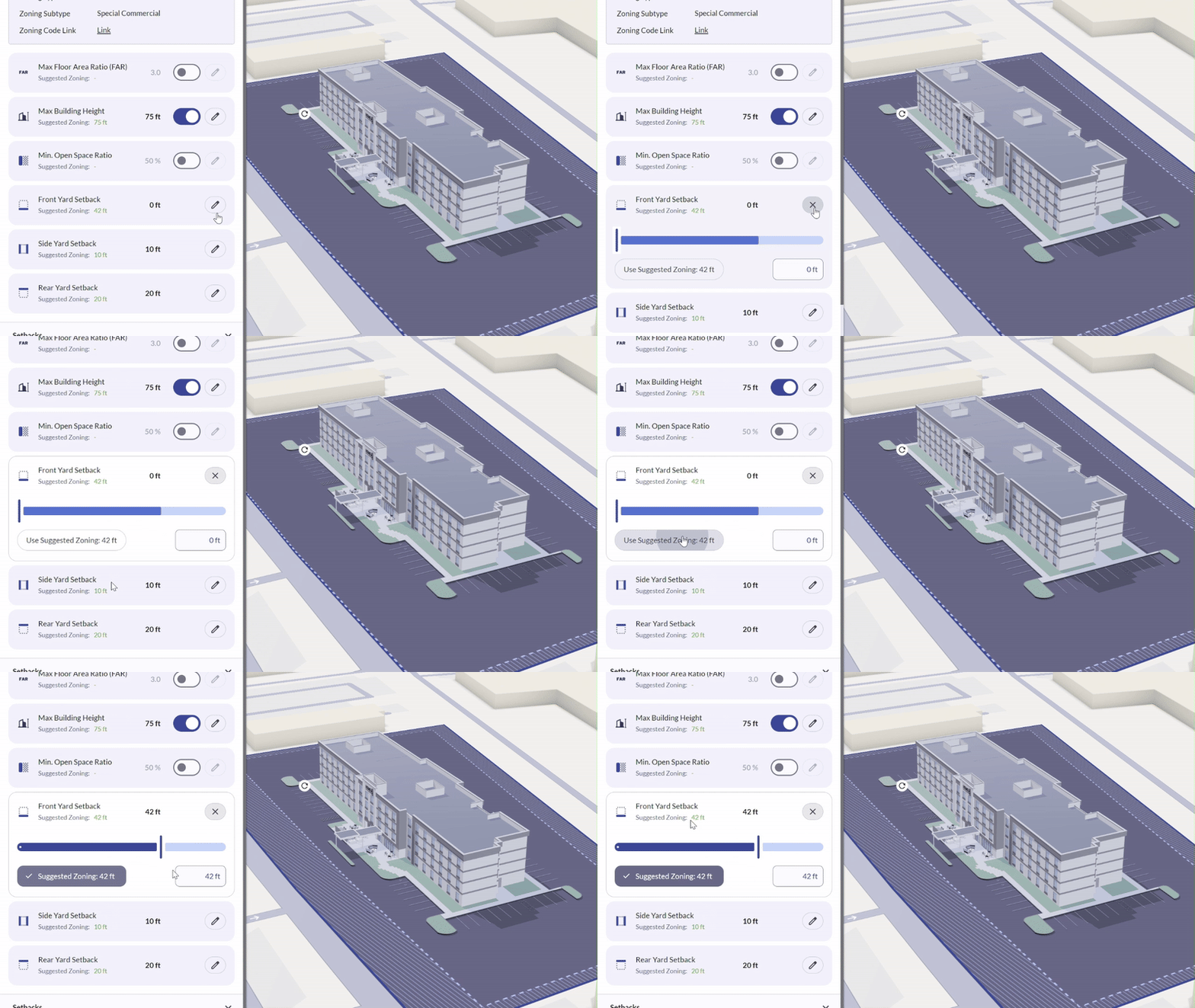
Suggested zoning setback values applied to front, side, and rear
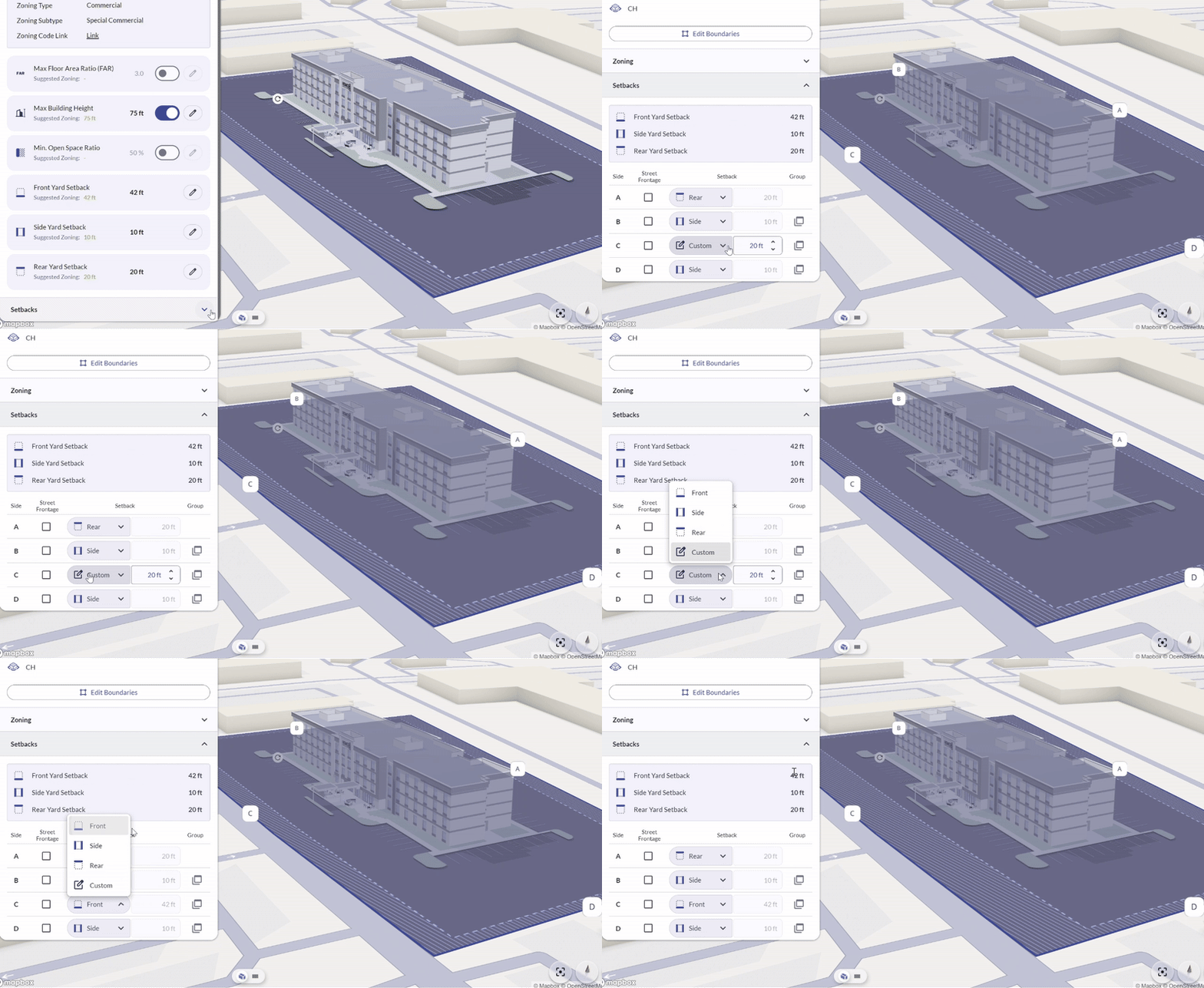
Assigning labeled setback values to each edge of the site