
Editing setbacks after project creation
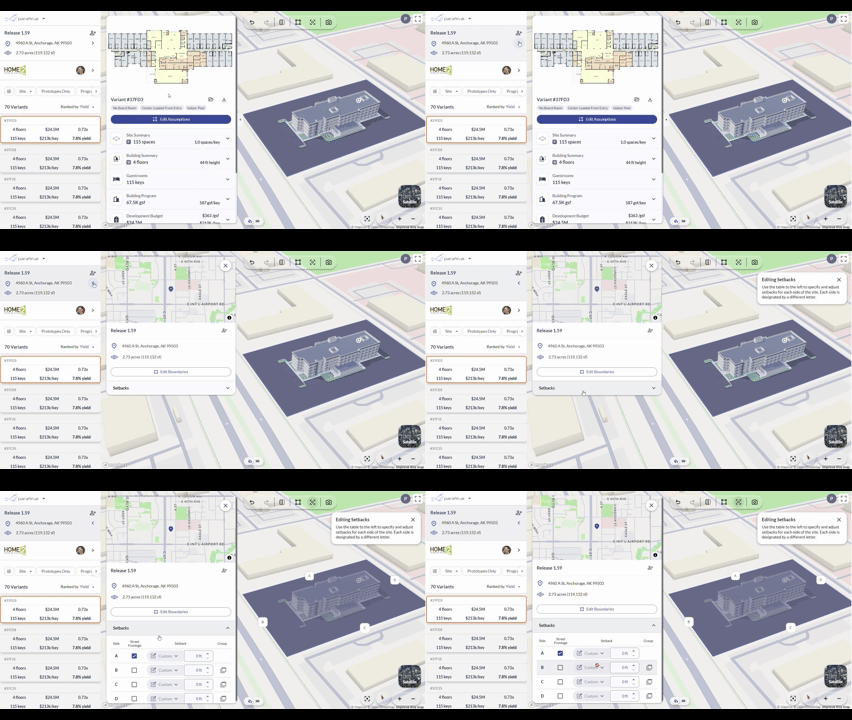
You don’t have to get setbacks right the first time. Open the Setbacks panel from either the setbacks button in the top toolbar or by clicking anywhere in the project information side panel.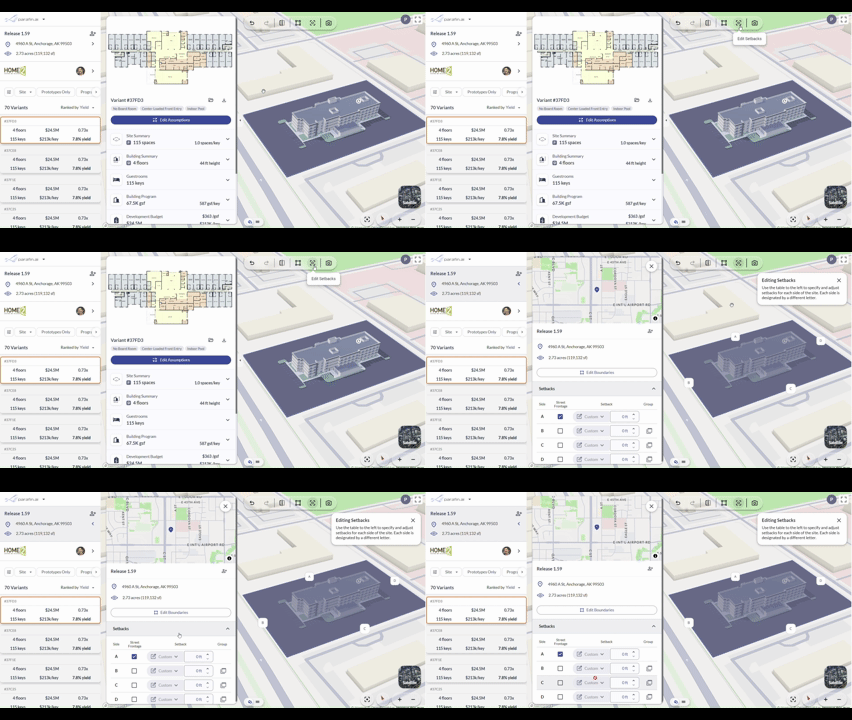
Adjusting setback distances
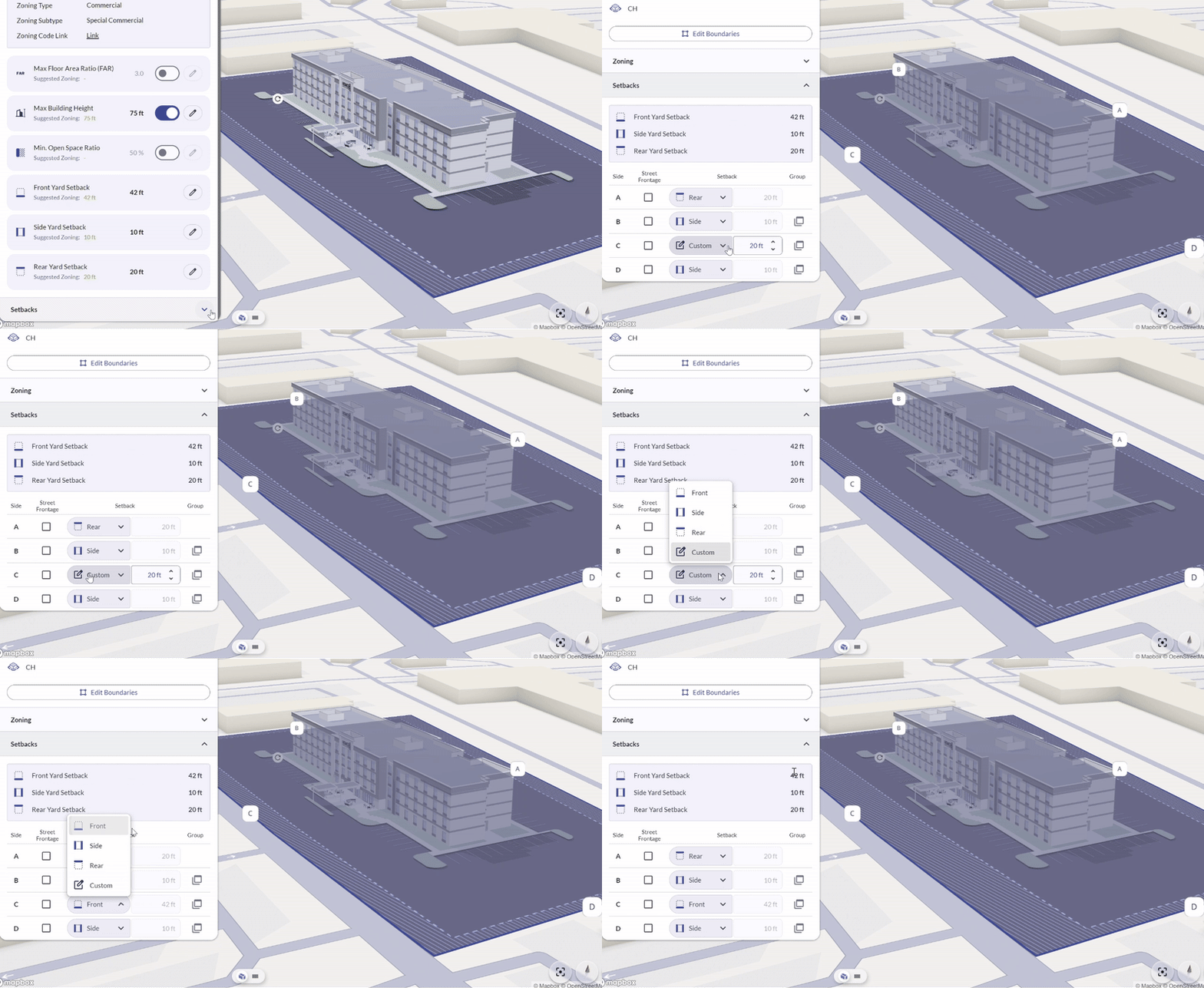
Adjust individual setback distances inside the panel. Changes apply to the site footprint in the viewer in real time.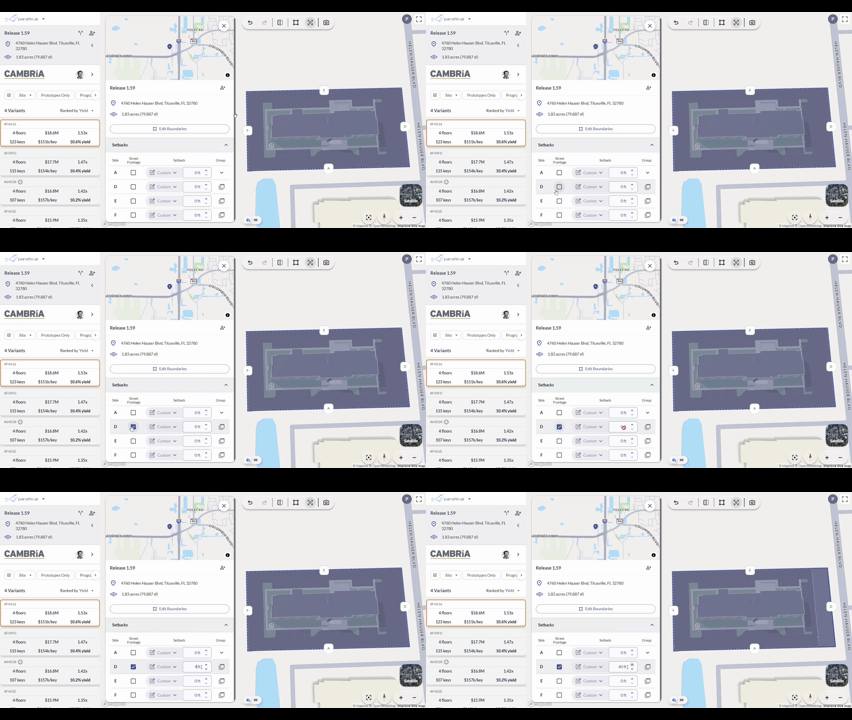
Simplifying complex parcels
County parcel geometry sometimes produces more sides than you need. Group adjacent sides together to reduce the number of distinct setback labels you have to manage.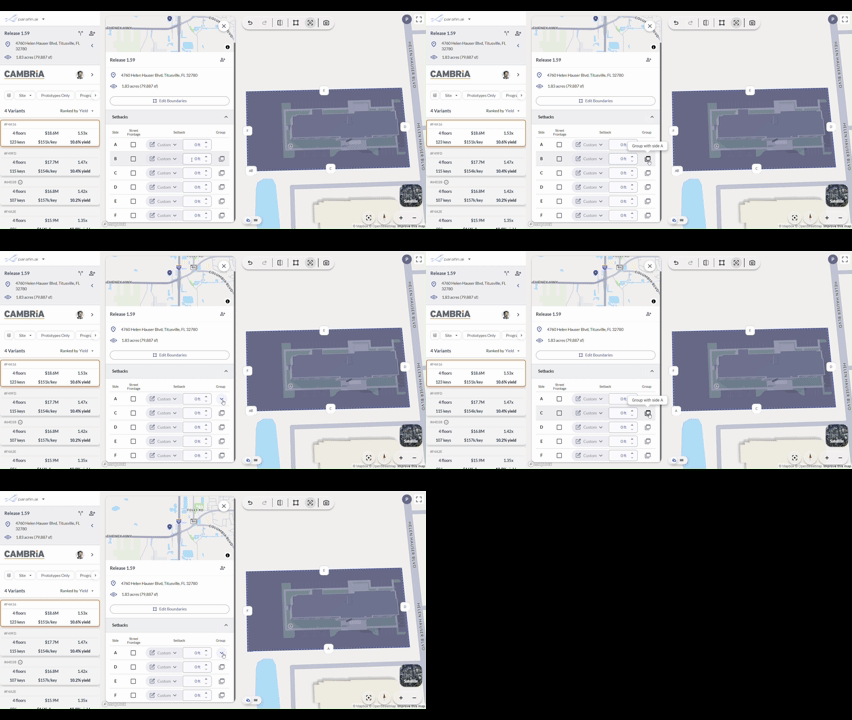
Using zoning-suggested setback values
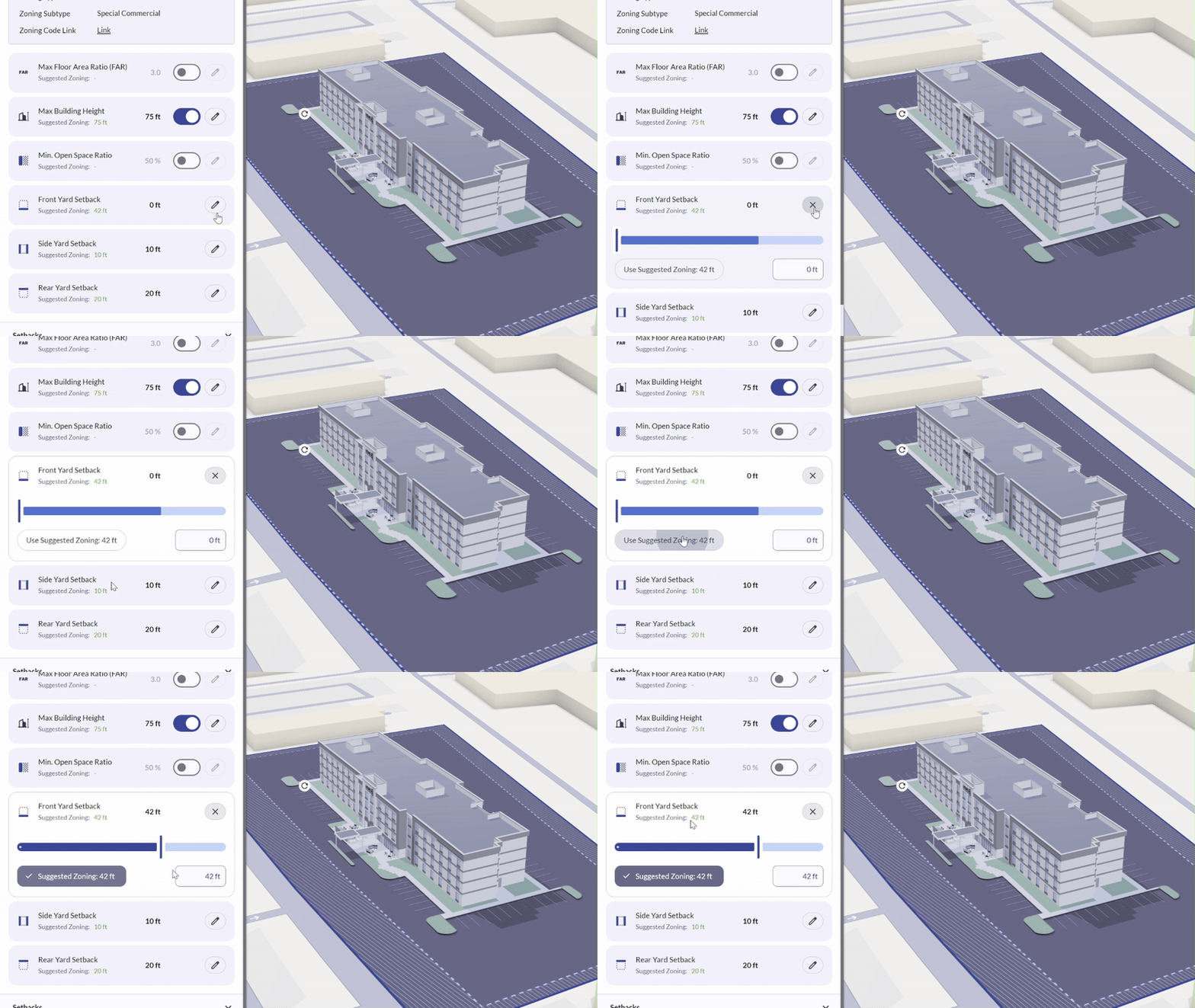
When zoning data is available for your site, Parafin displays suggested zoning values for front, side, and rear setbacks. Apply them as-is or adjust using the slider or text field — the site footprint updates in real time.