> ## Documentation Index
> Fetch the complete documentation index at: https://help.parafin.ai/llms.txt
> Use this file to discover all available pages before exploring further.
# Launching a project
> Create a new project — name your project, locate it, define the site, choose a brand, and generate designs.
When you start a new project, a **Create Your Project** screen previews all the steps before you begin. Click **Get Started** to begin.
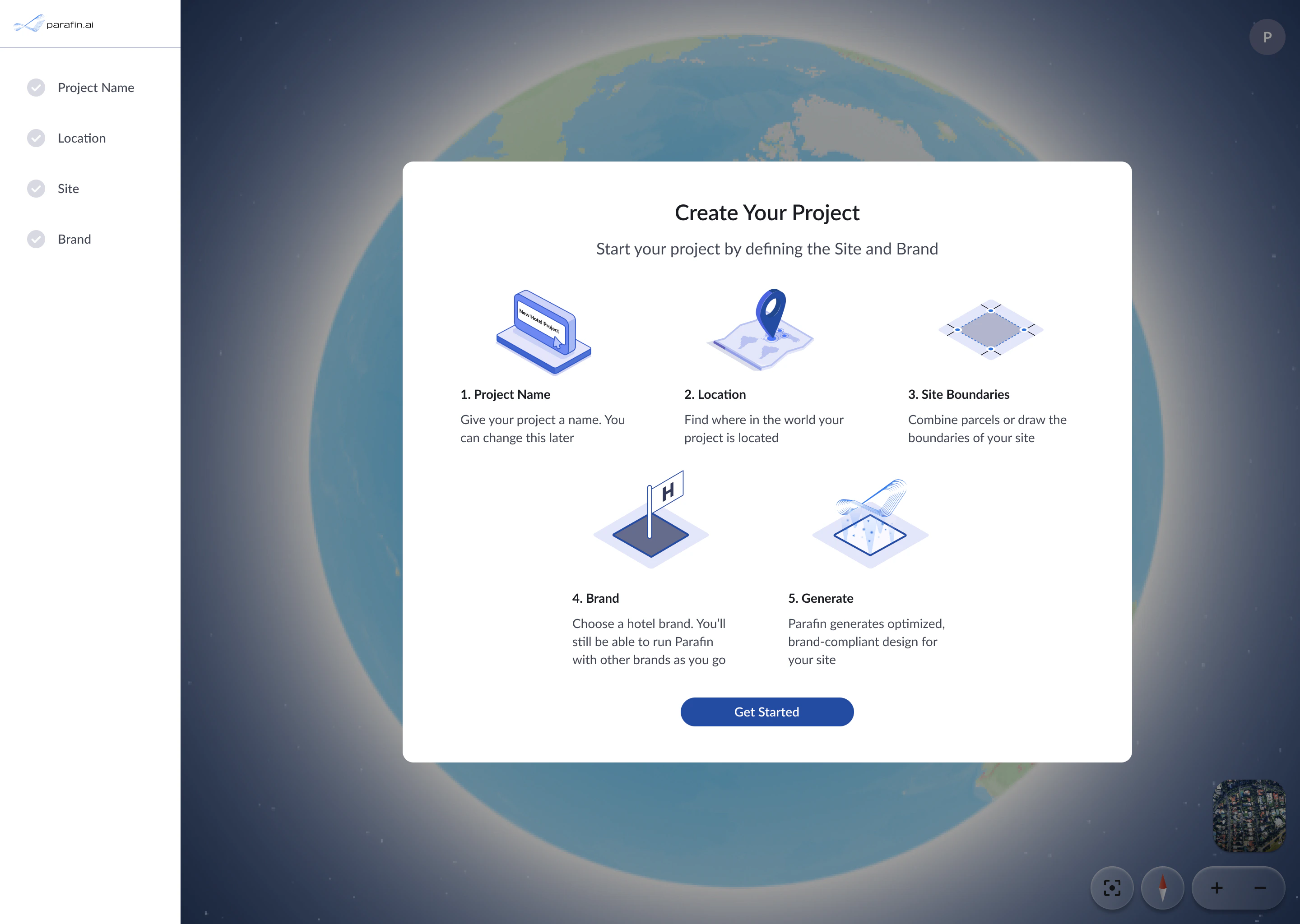 Once you click **Get Started**, a list of steps on the left side of the screen tracks where you are in the flow. Completed steps show a checkmark. Click any completed step to go back and make changes.
## The four steps
Give your project a name. You can change it later.
Find where in the world your project is located.
Combine parcels or draw the boundaries of your site.
Choose a hotel brand. You can run Parafin with other brands later.
Each step has **Back**, **Next**, and **Generate Designs** buttons at the bottom of the panel. After you finish the brand step, click **Generate Designs** to produce optimized, brand-compliant designs for your site.
## After project creation
Once designs are generated, configure setbacks, constraints, and zoning from the project dashboard:
* [Setbacks and adjacency](/working-with-projects/setbacks-adjacency): set required setbacks for each side of your site
* [Constraints](/working-with-projects/constraints-sorting): apply FAR, height, open space, and other design constraints
* [Zoning Panel](/tutorials/zoning-panel): review district codes and apply zoning-derived values
## Start a new project
Start a new project from any of three entry points:
* The **New Project** button on your dashboard
* **Add a New Project** link on the dashboard
* Direct URL: [app.parafin.ai/dashboard/create](https://app.parafin.ai/dashboard/create)
Once you click **Get Started**, a list of steps on the left side of the screen tracks where you are in the flow. Completed steps show a checkmark. Click any completed step to go back and make changes.
## The four steps
Give your project a name. You can change it later.
Find where in the world your project is located.
Combine parcels or draw the boundaries of your site.
Choose a hotel brand. You can run Parafin with other brands later.
Each step has **Back**, **Next**, and **Generate Designs** buttons at the bottom of the panel. After you finish the brand step, click **Generate Designs** to produce optimized, brand-compliant designs for your site.
## After project creation
Once designs are generated, configure setbacks, constraints, and zoning from the project dashboard:
* [Setbacks and adjacency](/working-with-projects/setbacks-adjacency): set required setbacks for each side of your site
* [Constraints](/working-with-projects/constraints-sorting): apply FAR, height, open space, and other design constraints
* [Zoning Panel](/tutorials/zoning-panel): review district codes and apply zoning-derived values
## Start a new project
Start a new project from any of three entry points:
* The **New Project** button on your dashboard
* **Add a New Project** link on the dashboard
* Direct URL: [app.parafin.ai/dashboard/create](https://app.parafin.ai/dashboard/create)